
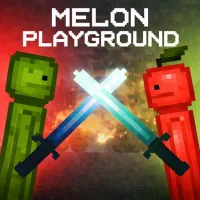
Melon Playground


















Melon Playground is a sandbox simulation game that gives players the freedom to create their own interactive worlds. Instead of following a set storyline, you can design scenes, test ideas, and experiment with a huge collection of objects. The game's open-ended nature allows you to build unique setups and discover new possibilities every time you play. If you enjoy creativity, exploration, and physics-based gameplay, Melon Playground offers an experience full of imagination and fun.
GAMEPLAY FOCUSED ON CREATIVITY AND EXPERIMENTATION
In Melon Playground, your main goal is to create and experiment. The game provides a wide range of characters, vehicles, props, tools, and environmental objects that you can place anywhere within a scene.
You can move items freely, adjust their size, change their appearance, and combine them in different ways. Every object reacts through the game's physics system, making each creation feel interactive and dynamic. There are no missions forcing you down a specific path. Instead, you decide what to build, how objects interact, and what kind of environment you want to create. From simple experiments to large custom projects, the possibilities are nearly endless.
Unique Features That Make Melon Playground Stand Out
- Complete freedom to create custom scenes without following fixed missions or objectives.
- A physics-based system that makes object interactions feel dynamic and entertaining.
- Large collections of characters, props, vehicles, tools, and decorative items.
- Easy customization options for changing object size, position, and appearance.
- Open-ended gameplay that encourages creativity and experimentation.
- Ability to save projects and revisit them later.
- Community-inspired content that provides new ideas and creative possibilities.
- Countless ways to combine objects and build unique scenarios every time you play.
Controls
- Left Mouse Button: Select, place, and interact with objects.
- Right Mouse Button: Open additional options.
- Mouse Movement: Move around the workspace.
- Mouse Wheel: Zoom in and out.
- Keyboard Shortcuts: Access editing tools and functions quickly.
RELATED GAMES
